
Upload Clash Reports
Upload Navisworks HTML clash reports to generate executive insights
Select Project
Choose an existing project or create a new one
Upload Clash Reports
Drop Navisworks HTML reports here
or click to browse files
How to export your clash report from Navisworks
- Open Clash Detective in Navisworks and go to the Report tab.
- Under Contents, check all fields except Image:
Summary, Clash Point, Date Found, Assigned To, Date Approved, Approved By, Layer Name, Item Path, Item ID, Status, Distance, Description, Comments, Quick Properties, Simulation Dates, Simulation Event, Clash Group, Grid Location. - Under Include Clashes:
- For Clash Groups, select Individual Clashes Only
- Check Include only filtered results
- Check all statuses: New, Active, Reviewed, Approved, Resolved
- Under Output Settings:
- Report Type: All tests (separate)
- Report Format: HTML (Tabular)
- Check Preserve result highlighting
- Click Write Report, then upload the generated
.htmlfiles above.
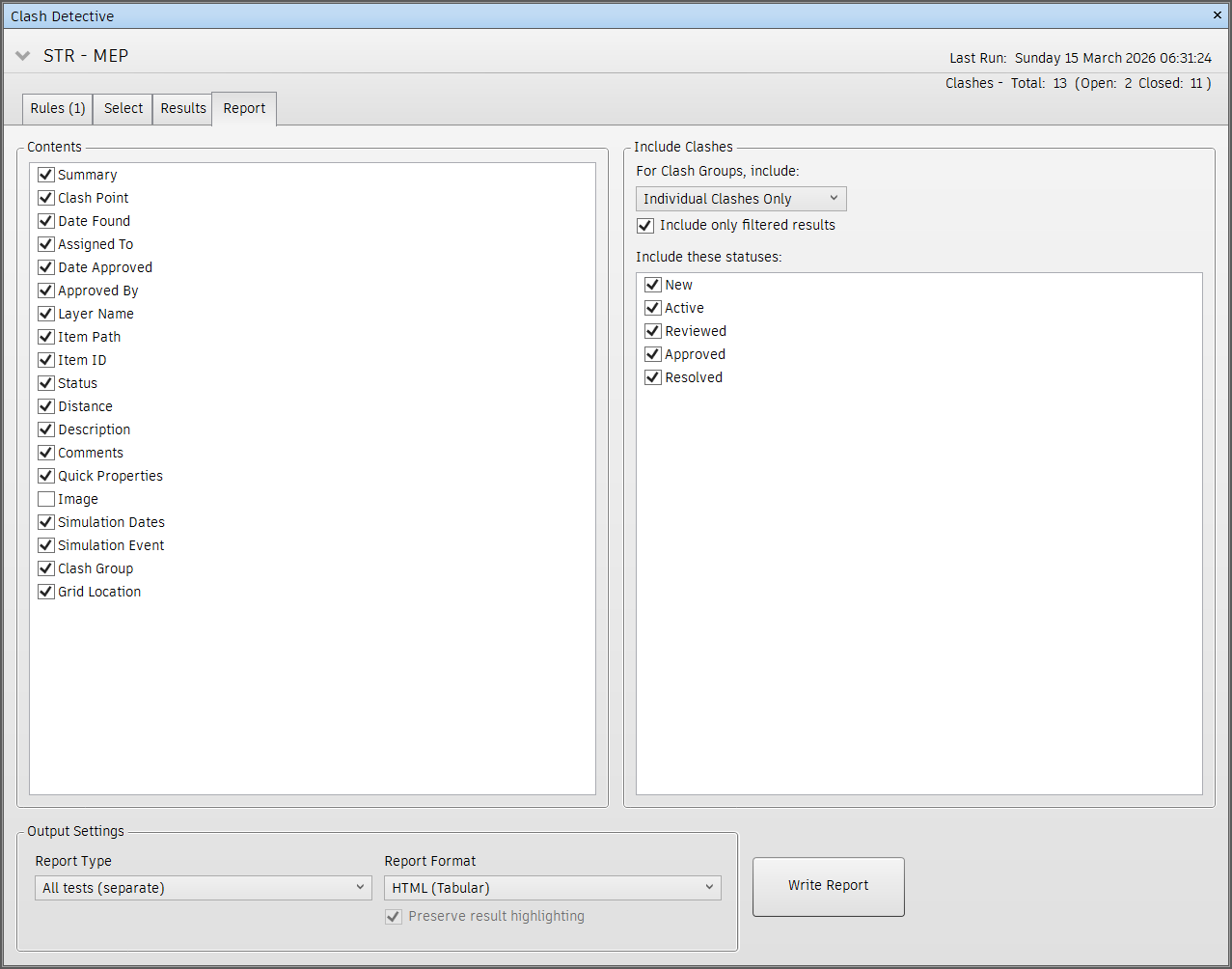
Example: Recommended Clash Detective export settings
Report missing data? Make sure you exported with the correct settings above — especially Item Path, Item ID, Status, Clash Group, and Grid Location must be checked in the Contents panel.
Project Management
Project Confidence
High
0
0%
Medium
0
0%
Low
0
0%
Approved
0
0%
0
Total
0
Active
0
Completed
0
Reviewed
Load clash reports to see the executive summary.
Hotspots Map
Carry-over Analysis
Detailed Clash Report
Rule Management
Overview Metrics
0
Total Clashes
0
Rules Applied
0
System Approved
0
Single key word rules
Rule Statistics
0
Total Rules
0
High Priority
0
Medium Priority
0
Low Priority
Priority Rules Management
Configure and manage clash priority rules to automatically classify clashes based on discipline pairs and keywords. Rules help streamline the clash review process by automatically assigning priority levels.
All Rules
| Rule Pair | Priority | Keywords | Count | Percentage | Actions |
|---|
Executive Summary
No Project Data
Connect to a project and upload clash reports to see the executive summary.
Email Report Builder
Coordination Issues (from ACC)
Enter the number of issues you've created in ACCPrevious Report (for trends)
Auto-filled from run history. Edit if needed.Reference Links (for footer)
Optional: Add links to include in REFERENCES sectionEmail Preview
Upload clash reports to generate the executive summary
Design Risk Review
Project Context
Set project details to improve accuracy
Drop .xlsx or click to upload
Without schedule: moderate accuracy