
Clash report analysis
Turn clash reports into clear coordination decisions.
Coorsight analyses your Navisworks clash reports to help you understand which issues need attention. See clashes grouped by potential impact, adjust the classification rules to suit your project, and export clear summaries and element IDs for your team. You stay in control of the rules and the decisions.
- UploadYour Navisworks HTML reports.
- ReviewResults and editable impact rules.
- ExportReports and element IDs for your team.
See what your reports can tell you
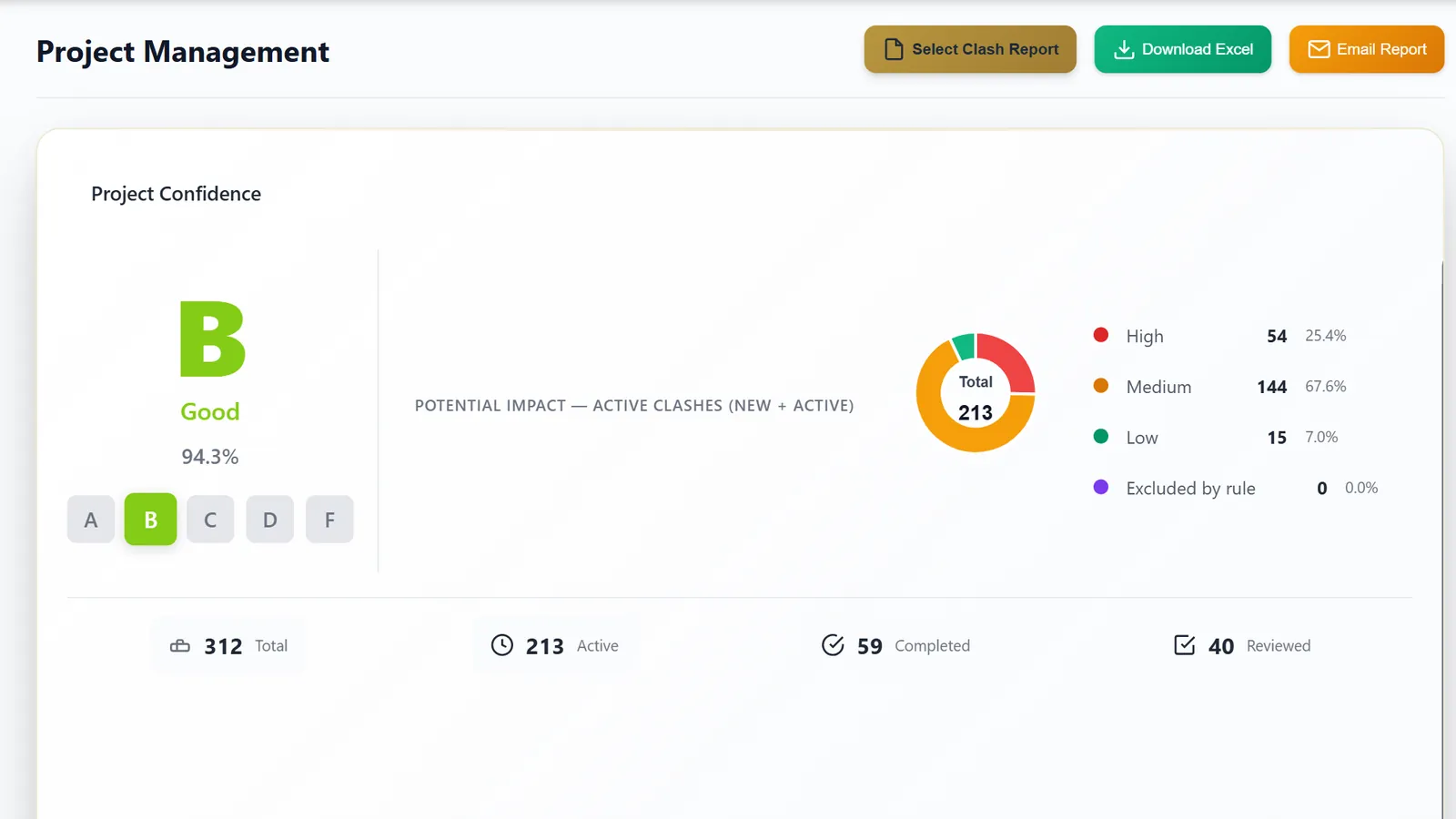
Coordination — See the overall coordination picture.
Upload Clash Reports
Upload Navisworks HTML clash reports to generate executive insights
Select Project
Choose an existing project or create a new one
Upload Clash Reports
How to export your clash report from Navisworks
- Open Clash Detective in Navisworks and go to the Report tab.
- Under Contents, check all fields except Image:
Summary, Clash Point, Date Found, Assigned To, Date Approved, Approved By, Layer Name, Item Path, Item ID, Status, Distance, Description, Comments, Quick Properties, Simulation Dates, Simulation Event, Clash Group, Grid Location. - Under Include Clashes:
- For Clash Groups, select Individual Clashes Only
- Check Include only filtered results
- Check all statuses: New, Active, Reviewed, Approved, Resolved
- Under Output Settings:
- Report Type: All tests (separate)
- Report Format: HTML (Tabular)
- Check Preserve result highlighting
- Click Write Report, then upload the generated
.htmlfiles above.
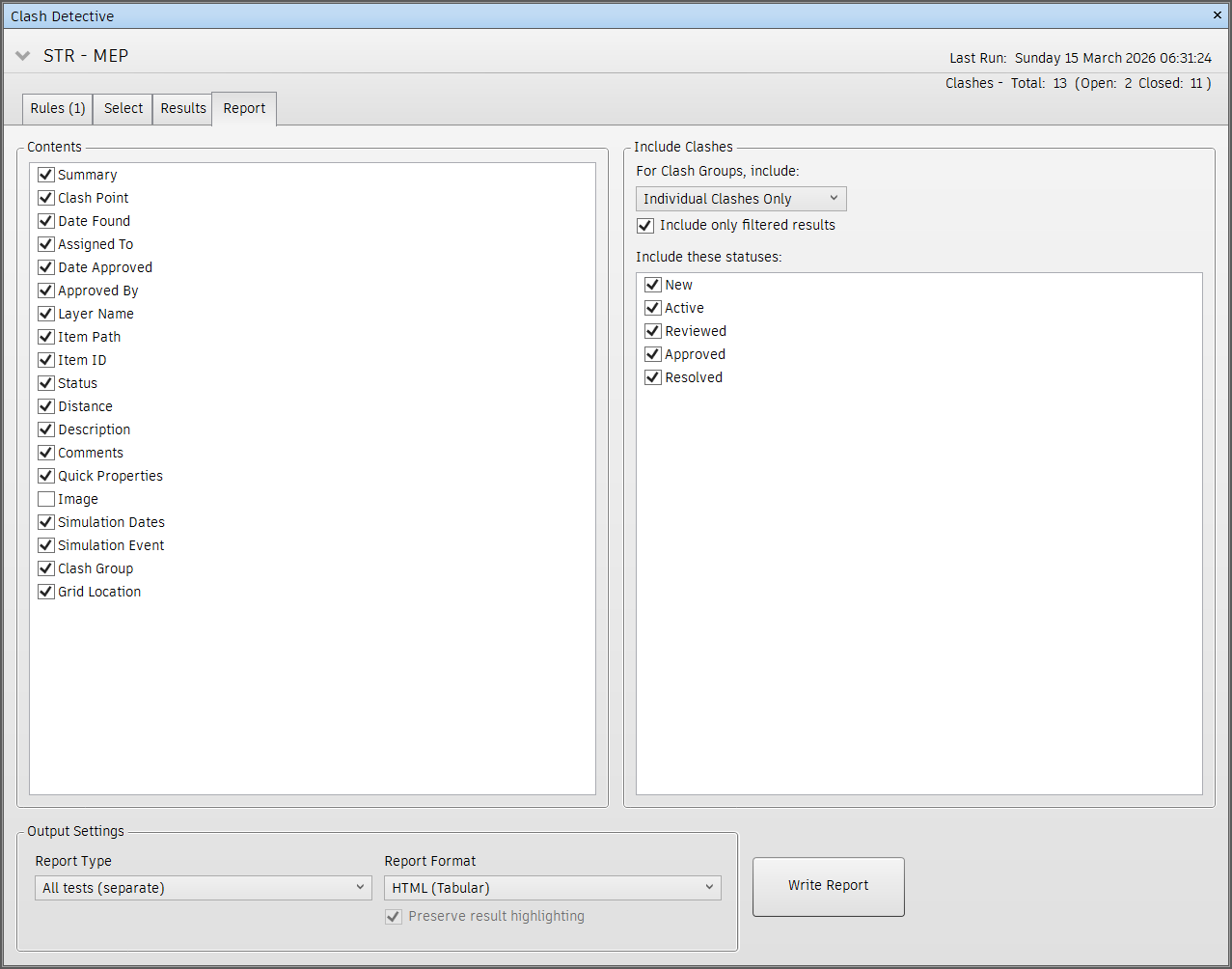
Example: Recommended Clash Detective export settings
Project Management
Project Confidence
Load clash reports to see the executive summary.
Hotspots Map
Carry-over Analysis
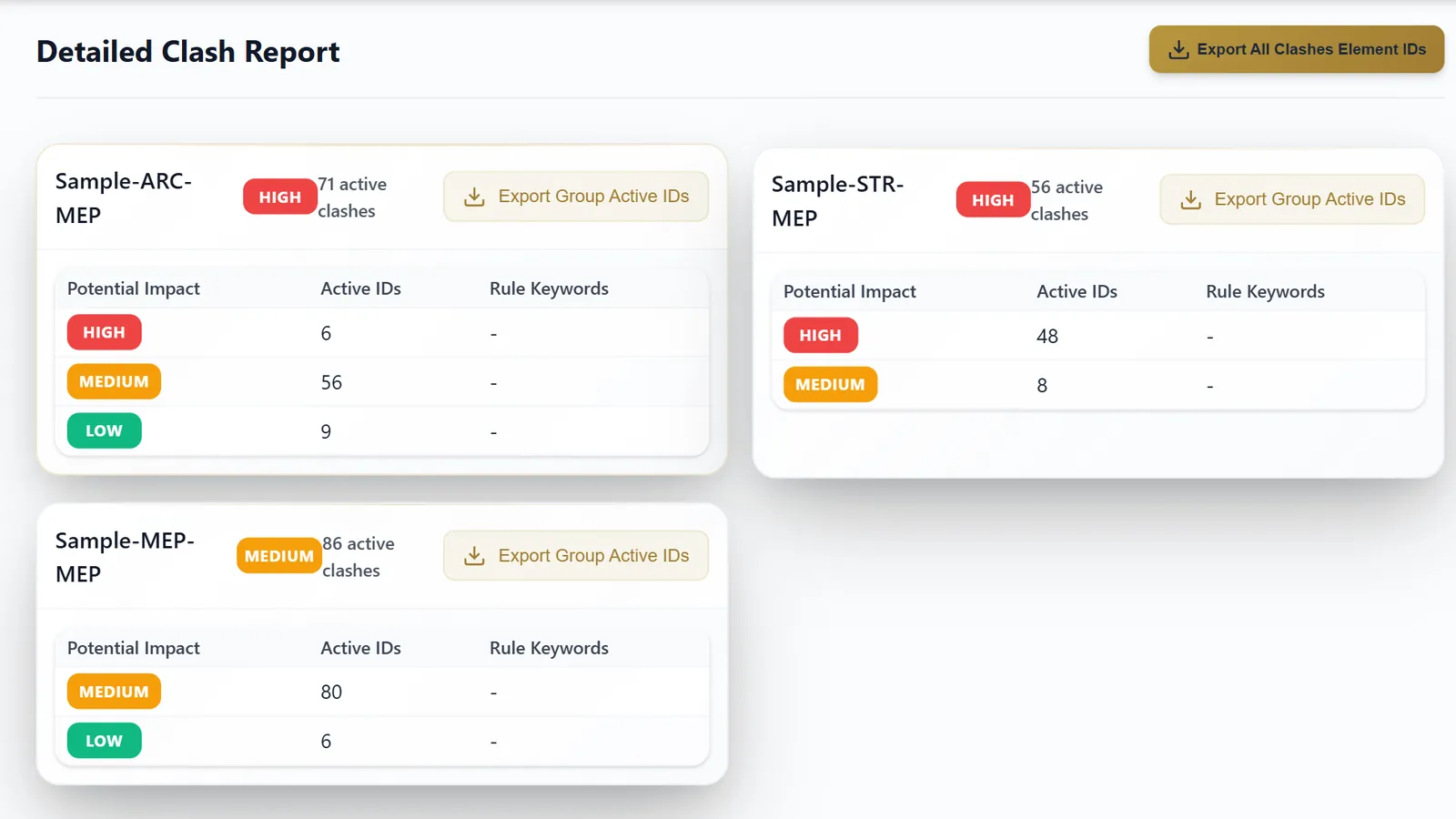
Detailed Clash Report
Rule Management
Overview Metrics
Rule Statistics
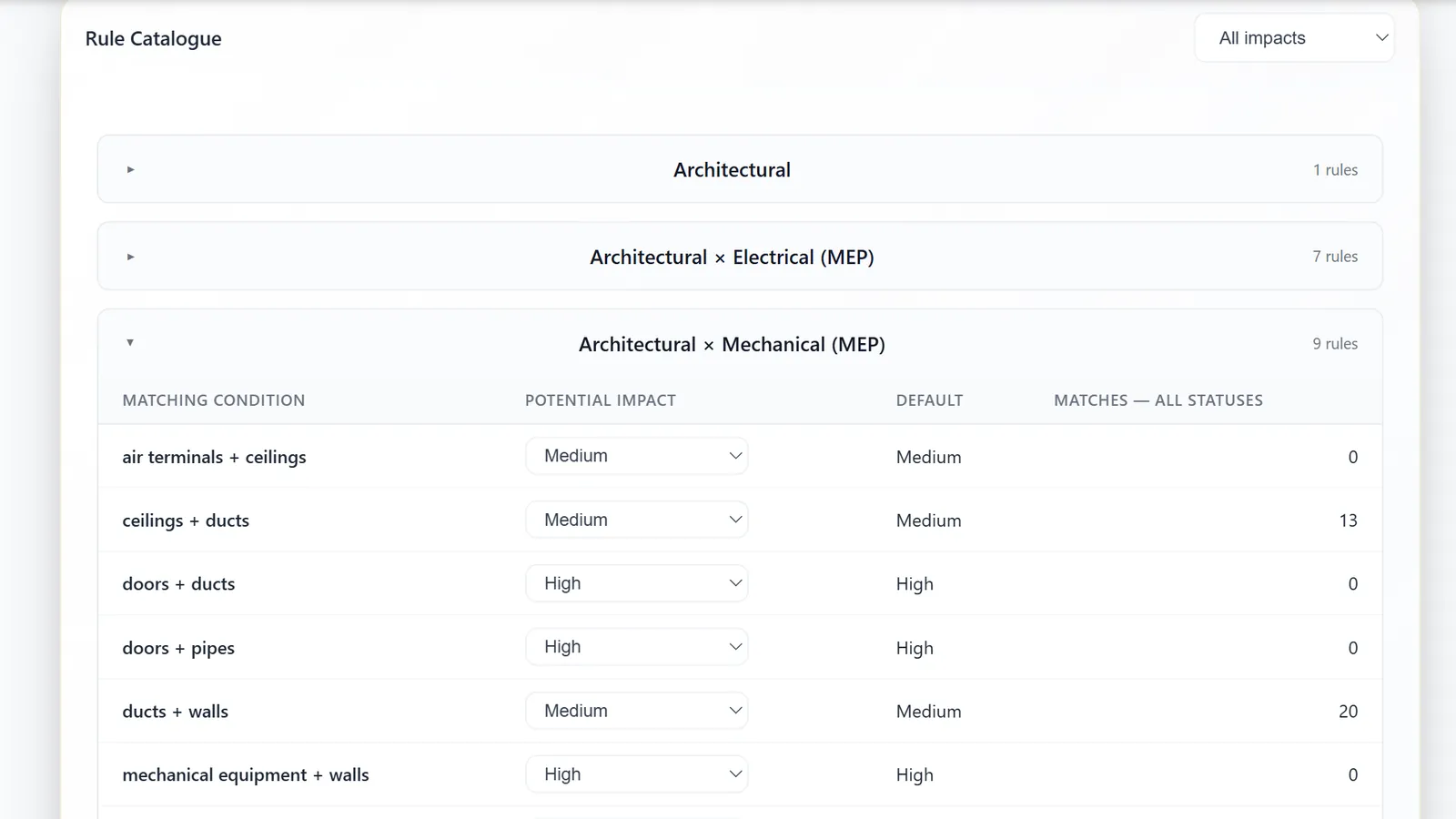
Impact Rules
These are the classification rules the analysis actually runs. Change a rule's Potential Impact, then Apply and Recalculate to re-run the analysis with the edited rules. Edits are stored per project when a project file is connected; otherwise they apply to this session only. Grouping by discipline is for display only and never changes classification.
The Matches column counts clashes of every status (including Reviewed, Approved and Resolved). The dashboard's impact distribution counts only active clashes (New + Active) — so a rule can have many matches but move far fewer clashes on the dashboard.
Rule Catalogue
Loading rule catalogue…
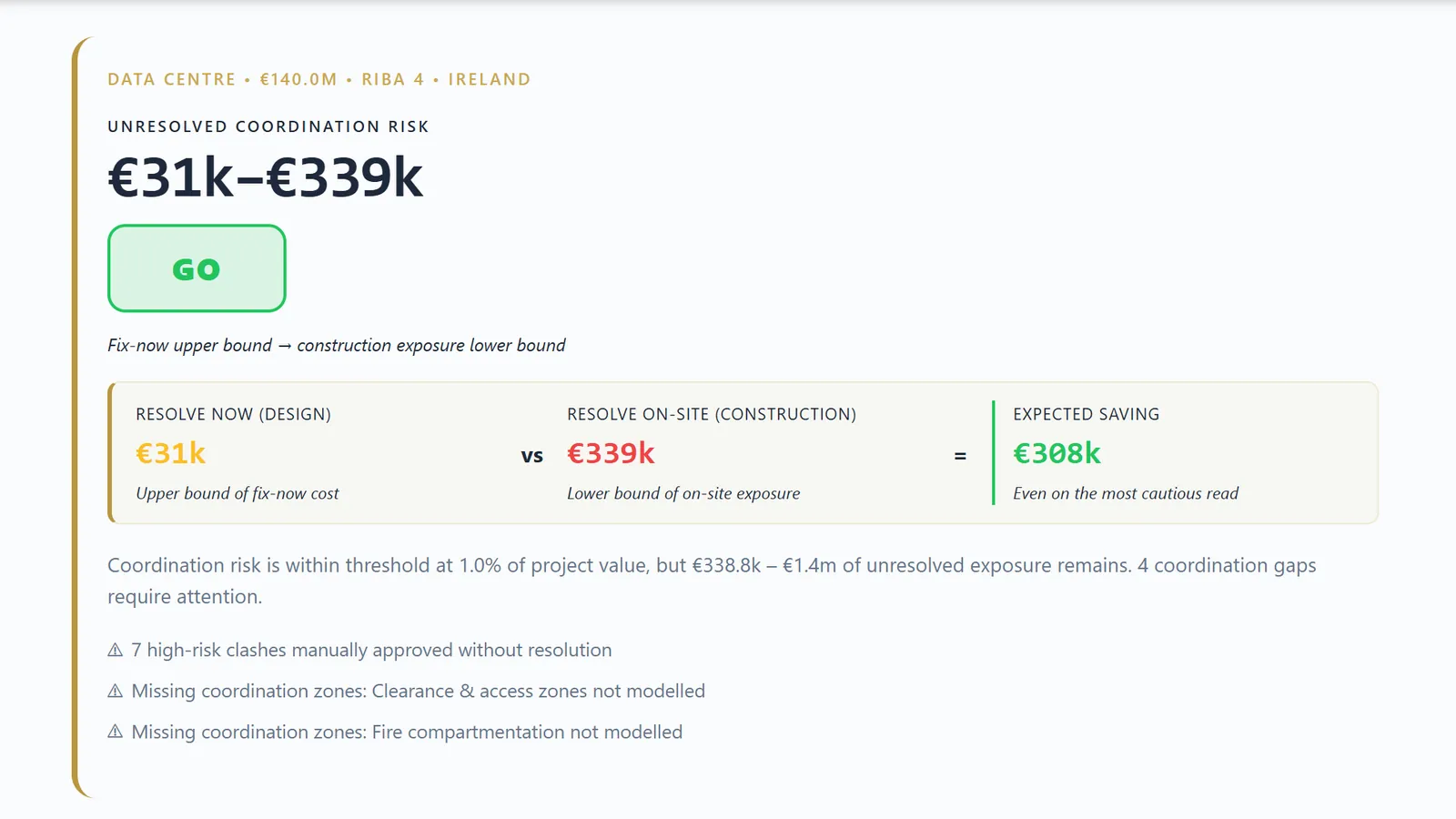
Executive Summary
No Project Data
Connect to a project and upload clash reports to see the executive summary.
Email Report Builder
Coordination Issues (from ACC)
Enter the number of issues you've created in ACCPrevious Report (for trends)
Auto-filled from run history. Edit if needed.Reference Links (for footer)
Optional: Add links to include in REFERENCES sectionEmail Preview
Upload clash reports to generate the executive summary